
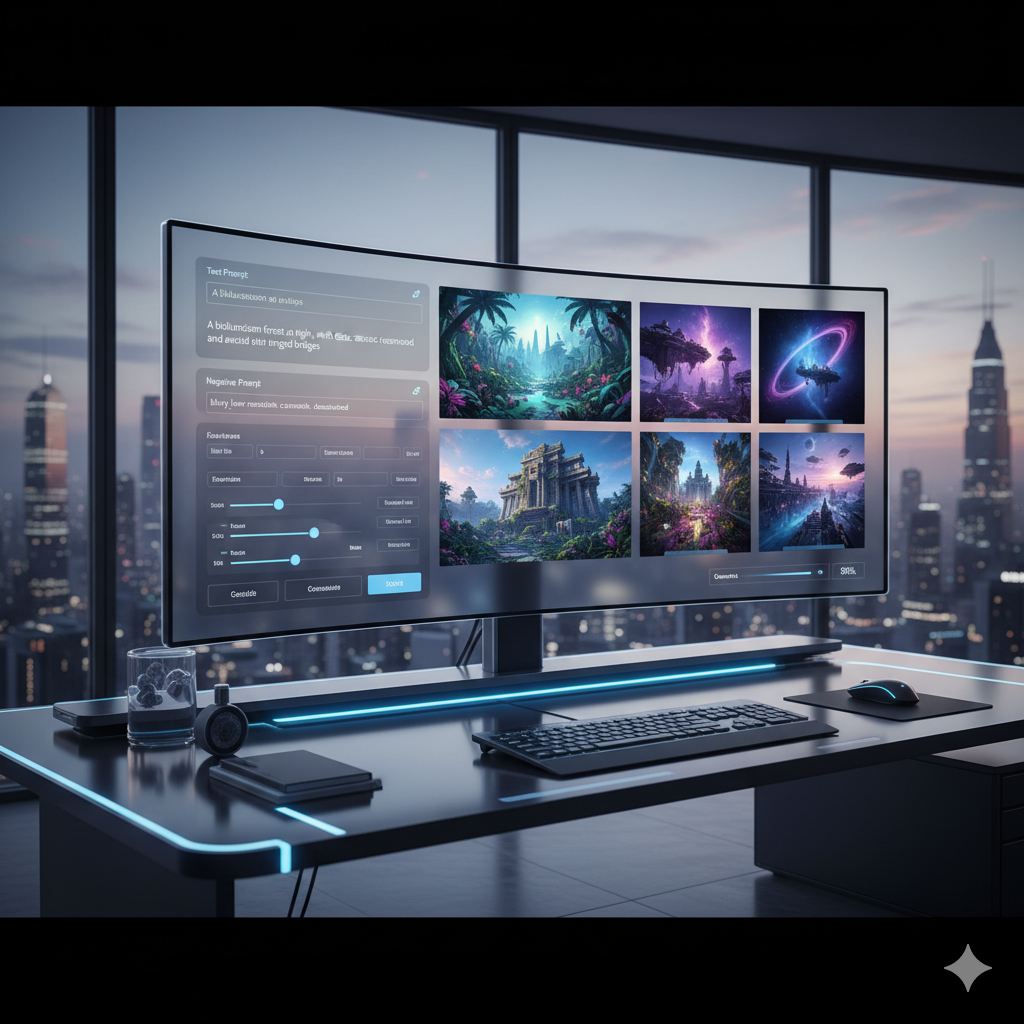
In the rapidly evolving landscape of artificial intelligence, AI image generators have transitioned from intriguing novelties to indispensable tools for creators across various fields. While the entry barrier for basic image generation is low, with many free options readily available, unlocking their true potential often requires moving beyond basic prompts. This comprehensive guide is tailored for budget-conscious creators eager to leverage advanced techniques within free AI image generators. We’ll delve into sophisticated prompting strategies, explore powerful features, and demonstrate how to achieve stunning, high-quality visuals without spending a dime.
The journey from a simple text description to a visually compelling image involves more than just typing a few words. It demands an understanding of prompt engineering, iterative refinement, and a strategic application of available tools. Many free platforms, often powered by variations of Stable Diffusion or their proprietary models, now offer functionalities that were once exclusive to premium subscriptions or complex local setups. Learning to harness these capabilities effectively can significantly elevate your creative output, making your visions a tangible reality.
The Evolution of Free AI Image Generation
Just a few years ago, AI image generation was largely confined to research labs and enthusiasts with powerful hardware. Today, accessible web interfaces and generous free tiers have democratized this technology. Platforms like Leonardo AI, Ideogram AI, and Playground AI stand out, offering daily credits, advanced features, and user-friendly interfaces that empower millions. This accessibility has fueled an explosion of creativity, but it also means that the bar for unique and high-quality AI-generated art is constantly rising.
From Simple Keywords to Nuanced Narratives
Initially, users would type simple keywords like “dog running in park” and be amazed by the results. While still impressive, such prompts often lead to generic outputs. The real magic happens when you start thinking like a director, providing specific details about composition, lighting, style, mood, and even camera angles. Advanced prompt engineering transforms your input from a command into a descriptive narrative, guiding the AI to understand the intricate nuances of your creative vision.
Mastering Prompt Engineering: The Art of AI Storytelling
Prompt engineering is the craft of constructing effective text inputs (prompts) to guide an AI model towards generating desired outputs. For image generation, this means learning how to communicate your visual ideas in a language the AI understands best. It’s not just about adding more words; it’s about adding the right words in the right order and with the right emphasis.
Deconstructing the Advanced Prompt
A well-crafted advanced prompt typically includes several key components:
- Subject Description: What is the main focus? Be specific about characteristics, actions, and emotions. Example: “A majestic lion, with a golden mane flowing in the wind, roaring triumphantly.”
- Environment/Setting: Where is the subject? Describe the background, foreground, time of day, and weather. Example: “standing on a rocky outcrop overlooking a vast savanna at sunset, thunderclouds gathering.”
- Artistic Style/Medium: What aesthetic do you want? Is it a photograph, painting, digital art, sketch, anime, pixel art? Specify the artist or art movement if applicable. Example: “hyperrealistic digital painting, vibrant colors, inspired by National Geographic photography.”
- Lighting and Atmosphere: How is the scene lit? What’s the mood? Example: “dramatic golden hour lighting, cinematic, ethereal glow, evoking awe and power.”
- Composition and Camera Angle: How is the image framed? Is it a wide shot, close-up, aerial view? Example: “wide-angle shot, low perspective, highly detailed, sharp focus.”
- Quality Modifiers: Words that instruct the AI to produce high-quality output. Example: “8K, photorealistic, incredibly detailed, masterpiece, trending on ArtStation.”
Prompt Weighting and Emphasis
Many advanced free AI image generators (or their underlying models) allow for weighting parts of your prompt. This means you can tell the AI to pay more attention to certain keywords or phrases than others. While the exact syntax varies between platforms (e.g., parentheses, colons), the principle is the same: amplify the importance of key elements.
- Basic Emphasis (often with parentheses):
(subject)or((subject))to increase influence.- Example: “A cat in a garden. vs. A (fluffy Persian cat) in a lush ((secret garden)).” The second prompt guides the AI to prioritize the fluffiness and the secret garden aspect.
- Weighting (often with colons):
(keyword:weight)where weight is a number (e.g., 1.2 for more, 0.8 for less).- Example: “A person reading a book. vs. A (young woman:1.3) reading a (vintage book:1.1) in a cozy armchair (by a fireplace:0.9).” This allows for fine-grained control over how much emphasis each element receives.
Leveraging Negative Prompts for Refinement
Just as important as telling the AI what you want is telling it what you don’t want. Negative prompts are a crucial advanced technique that helps eliminate undesirable elements, improve quality, and refine the output. This is particularly powerful for free tools where initial generations might often contain common flaws.
Common Uses of Negative Prompts:
- Removing Undesired Objects/Elements: If the AI frequently adds extra fingers, text, or specific items you don’t want. Example: “ugly, tiling, poorly drawn hands, poorly drawn feet, poorly drawn face, out of frame, extra limbs, disfigured, deformed, body out of frame, bad anatomy, watermark, signature, cut off, low contrast, underexposed, overexposed, bad art, beginner, amateur, distorted face, blurry, grainy.”
- Improving Quality: General quality enhancers. Example: “low quality, bad quality, worst quality, ugly, jpeg artifacts, blurry, noisy, pixelated.”
- Controlling Style/Mood: If the AI leans too much into a certain style or mood you want to avoid. Example: “cartoon, anime, 3D render, dark, depressing, minimalist.”
- Fixing Anatomy: A common challenge with AI art. Example: “extra fingers, missing limbs, contorted, ugly hands.”
Think of negative prompts as a filter, guiding the AI away from undesirable regions of its immense latent space. Combining strong positive prompts with comprehensive negative prompts is a cornerstone of advanced AI image generation.
Beyond Static Images: Inpainting and Outpainting
Many leading free AI image generators now offer features that allow you to modify existing images, rather than just generating them from scratch. Inpainting and outpainting are two incredibly powerful techniques that take your creations to the next level.
Inpainting: Fixing and Changing Specific Areas
Inpainting allows you to select a specific area of an existing image (like a brush stroke on a canvas) and then use a prompt to generate new content only within that masked region. This is invaluable for:
- Correcting Flaws: Fixing a distorted eye, an extra limb, or an unwanted object.
- Changing Elements: Swapping out an object (e.g., changing a coffee cup to a teacup), altering clothing, or modifying a background detail.
- Adding Details: Introducing new elements into a scene seamlessly.
Real-life Example: Imagine you’ve generated a stunning landscape, but a small, unwanted bird appears in the sky. You can use inpainting to mask the bird and prompt “clear blue sky” or “fluffy white cloud” to remove or replace it, blending it perfectly with the existing image.
Outpainting: Expanding Your Canvas
Outpainting is the reverse of inpainting; it allows you to extend the boundaries of an image beyond its original canvas. You provide a prompt describing what you want to appear in the newly expanded areas, and the AI intelligently fills in the gaps, maintaining stylistic consistency.
- Expanding Landscapes: Turning a close-up of a mountain into a sprawling panorama.
- Adding Context: Showing more of a character’s environment or adding elements outside the original frame.
- Creating Wider Shots: Turning a portrait into a full-body shot with appropriate surroundings.
Real-life Example: You have a striking portrait of a wizard, but you want to show him in his magical workshop. Outpainting allows you to extend the image to the left and right, prompting “mystical laboratory filled with glowing potions and ancient scrolls” to seamlessly integrate the new environment.
Free platforms like Playground AI and sometimes Leonardo AI (depending on credit usage) offer robust inpainting and outpainting tools, making them essential for iterative design and creative expansion.
Image-to-Image Prompting: Guiding with Visuals
While text-to-image is the most common mode, image-to-image (img2img) prompting is a powerful advanced technique where you provide an existing image as an input alongside your text prompt. The AI then uses the input image as a stylistic or compositional reference, blending it with your text instructions. This allows for unparalleled control over the output, ensuring consistency and specific visual guidance.
How Image-to-Image Works:
- Upload a Reference Image: This could be a photo, a sketch, another AI-generated image, or even a simple doodle.
- Provide a Text Prompt: Describe what you want the AI to generate, referencing elements from the input image or introducing new ones.
- Adjust Denoising Strength (or similar parameter): This crucial setting determines how much the AI adheres to the input image versus the text prompt.
- Low Denoising Strength: The output will closely resemble the input image, with subtle changes based on your prompt (e.g., changing colors, minor stylistic shifts).
- High Denoising Strength: The output will be more influenced by the text prompt, using the input image more as a loose compositional or structural guide.
Practical Applications:
- Stylizing Photos: Transform a real photograph into a painting, a cartoon, or a specific artistic style while retaining its original composition.
- Variations on AI Art: Create endless variations of a previous AI-generated image, exploring different moods, lighting, or minor alterations.
- Sketch-to-Image: Turn a rough sketch or doodle into a fully rendered, high-quality image. This is a game-changer for concept artists and designers.
- Consistent Character Design: Use a base image of a character to generate them in different poses, outfits, or environments while maintaining their core appearance.
Many free tools, particularly those offering Stable Diffusion models (e.g., Clipdrop by Stability AI, some tiers of Leonardo AI), include robust image-to-image capabilities, making them incredibly versatile for creators who need visual consistency or want to build upon existing visual assets.
Advanced Iteration and Remixing Techniques
The journey to a perfect AI-generated image is rarely linear. It’s often an iterative process of trial, error, and refinement. Advanced creators understand that the first output is just a starting point. Learning to iterate effectively and remix existing ideas is key to unlocking truly unique results.
Seed Control for Consistency
Every AI image generation is associated with a unique “seed” number. This seed determines the initial noise pattern from which the image is generated. If you generate an image you like, saving its seed allows you to regenerate an almost identical image, even with slight prompt changes. This is invaluable for:
- Making Minor Adjustments: Change a small detail in your prompt while keeping the overall composition and subject intact.
- Generating Variations: Generate multiple images from the same seed with slight prompt alterations to explore different artistic directions from a stable base.
- Troubleshooting: If an image goes wrong, you can go back to a good seed and try a different prompt modification.
Most free AI generators provide the seed number for each output, often under “image details” or “metadata.” Always note down useful seeds!
Prompt Chaining and Blending
Advanced users often don’t just stop at one successful prompt. They build upon it. Prompt chaining involves taking elements from successful prompts and combining them in new ways. Blending, in some tools, refers to combining multiple input images or text prompts to create a hybrid output.
Example:
- Generate “A cyberpunk city at night, neon glow, wet streets.”
- Take the best output and add: “a lone wanderer with a glowing umbrella, detailed reflections, volumetric lighting.”
- If you like the wanderer, but want a different style, you might take the seed from step 2 and add “retro sci-fi art, vibrant pastel colors, 1980s aesthetic.”
This iterative process allows for deep exploration and refinement, gradually converging on your ideal vision.
Specific Free AI Image Generators and Their Advanced Features
While many free tools exist, some consistently stand out for their advanced features available without a subscription. These platforms often leverage powerful models like Stable Diffusion but add their own unique interfaces and functionalities.
- Leonardo AI:
- Generous Free Credits: Typically 150 credits refresh daily, allowing for many generations.
- Multiple Models: Access to Stable Diffusion variants (SDXL, SD 1.5), Leonardo Diffusion, Absolute Reality, and custom community models.
- Image Guidance (Image-to-Image): Upload an image to guide generation.
- Prompt Magic: An internal enhancer that interprets prompts more creatively.
- Alchemy: An advanced rendering pipeline (often credit-intensive but yields high quality).
- Canvas Editor (Inpainting/Outpainting): Robust tools for editing existing images.
- ControlNet (limited free access): Allows for precise control over pose, depth, and edges from reference images.
- Upscalers: Enhance resolution of generated images.
- Ideogram AI:
- Text Rendering: Its most significant unique feature is its exceptional ability to render accurate and aesthetically pleasing text within images, a major challenge for most AI models.
- Prompt Weighting: Supports basic emphasis through parentheses.
- Generous Free Tier: Typically offers hundreds of free generations daily.
- Stylistic Options: Built-in styles (e.g., cinematic, 3D render, typography) make it easy to achieve specific aesthetics.
- Aspect Ratio Control: Precise control over image dimensions.
- Playground AI:
- Massive Free Generations: Often thousands of images per day.
- Multiple Models: Access to Stable Diffusion XL, SD 1.5, and other community models.
- Image to Image: Use reference images to guide generation.
- Canvas Editor (Inpainting/Outpainting): Very capable inpainting and outpainting tools for editing.
- Filter/Style Presets: Easy application of various artistic styles.
- Negative Prompt Library: Often suggests common negative prompts for quality improvement.
- Clipdrop by Stability AI (Stable Diffusion Online):
- Direct SDXL Access: Offers direct web access to the latest Stable Diffusion models.
- Image Upscaler: Free tool for increasing image resolution.
- Uncrop: A free outpainting tool similar to “generative expand.”
- Relight: Change lighting direction and intensity.
- CleanUp: Remove objects from images.
- Stable Diffusion Reimagine: Generate variations of an uploaded image.
- Fooocus (Local/Online Demos):
- Simplified Advanced UI: While primarily a local installation, many online demos exist. It simplifies complex Stable Diffusion parameters into an easy-to-use interface, making advanced features like ControlNet and varied image styles more accessible.
- Emphasis on Aesthetics: Designed to produce high-quality, aesthetically pleasing images with minimal prompting.
Comparison Tables: Advanced Features Across Free Platforms
To help you choose the best tool for your advanced creative needs, here’s a comparison of key features offered by popular free AI image generators:
| Feature | Leonardo AI (Free Tier) | Ideogram AI (Free Tier) | Playground AI (Free Tier) | Clipdrop (Stable Diffusion) |
|---|---|---|---|---|
| Generous Daily Credits/Generations | ✓ (150 credits) | ✓ (Hundreds) | ✓ (Thousands) | ✓ (Some tools free) |
| Advanced Prompt Engineering (Weighting/Emphasis) | ✓ | ✓ (via parentheses) | ✓ | ✓ |
| Negative Prompting | ✓ | ✓ | ✓ | ✓ |
| Inpainting/Outpainting (Canvas Editor) | ✓ | ✗ | ✓ | ✓ (Uncrop, CleanUp) |
| Image-to-Image / Image Guidance | ✓ | ✓ | ✓ | ✓ (Reimagine) |
| Text Rendering within Images | ✗ (limited/unreliable) | ✓ (Excellent) | ✗ (limited/unreliable) | ✗ (limited/unreliable) |
| Specific Model Selection (SDXL, SD 1.5, etc.) | ✓ | ✓ (proprietary base) | ✓ | ✓ (SDXL) |
| Upscaling Functionality | ✓ | ✗ | ✓ | ✓ |
| ControlNet Integration (Limited/Free Access) | ✓ (often credit-intensive) | ✗ | ✗ | ✗ |
| Community Custom Models/LoRAs | ✓ | ✗ | ✓ | ✗ |
Understanding the common pitfalls and solutions in prompt engineering can save creators significant time and improve output quality. Here’s a look at common prompt issues and how advanced techniques address them.
| Challenge | Description | Basic Prompting Attempt | Advanced Prompting Solution |
|---|---|---|---|
| Generic Output | Images lack specific detail, style, or uniqueness. | A car in a city. |
A (futuristic sports car:1.3), sleek chrome, driving through a ((neon-lit Tokyo street)) at night, (cinematic, ultra-realistic:1.2), depth of field, 8k. |
| Unwanted Elements | AI adds objects or artifacts not intended by the user. | A beautiful landscape. |
A beautiful landscape, negative prompt: "watermark, text, ugly, blurry, deformed, extra people." |
| Inconsistent Style | Images vary wildly in style despite similar prompts. | A cat. Another cat. |
A fluffy tabby cat, (digital painting, vibrant colors:1.1), sitting on a windowsill. Then: A black cat, (digital painting, vibrant colors:1.1), in a dark alley, using the same seed number. |
| Anatomical Errors | Human or animal figures appear distorted or with incorrect anatomy. | A person looking at the sky. |
A woman looking at the sky, (realistic hands, perfect anatomy:1.2), negative prompt: "extra limbs, disfigured, bad anatomy, ugly hands, missing fingers." |
| Poor Lighting/Mood | Image lacks desired atmosphere or visual impact. | A forest scene. |
An ancient magical forest, (mystical fog, ethereal glowing mushrooms:1.4), volumetric lighting, deep shadows, dark fantasy art. |
| Text Generation Issues | AI struggles to generate legible or correct text. | A sign saying "Welcome". |
A vintage neon sign saying "Welcome", glowing, retro futuristic, urban photography. (Use Ideogram AI for best text results). |
Practical Examples and Case Studies for Creators
Let’s look at how budget-conscious creators can leverage these advanced free tools in real-world scenarios.
Case Study 1: Concept Artist Designing a Game Character
Creator: Indie game developer on a shoestring budget.
Goal: Generate multiple iterations of a “post-apocalyptic scavenger” character, exploring different outfits, poses, and gear, while maintaining a consistent visual style.
Advanced Free AI Workflow:
- Initial Prompting (Leonardo AI): Start with a detailed prompt like: “a young female post-apocalyptic scavenger, worn leather armor, gas mask hanging from belt, carrying a makeshift rifle, gritty environment, realistic art, cinematic lighting, full body shot, detailed face, strong expression.” Generate several images, saving the seed of the most promising one.
- Image-to-Image for Variations (Leonardo AI / Clipdrop): Take the best initial image and use it as an input for img2img.
- Change the prompt to “same character, now holding a rusty katana, dynamic pose, dust storm approaching” with a medium denoising strength to retain character likeness but alter pose and gear.
- Adjust denoising strength to high for more radical changes, like “same character, now in a stealthy pose, dark cloak, silhouetted against a ruined city.”
- Inpainting for Detail Refinement (Playground AI): If a generated character has slightly off hands or a weapon needs modification, use Playground AI’s canvas editor. Mask the area and prompt “perfectly rendered strong hands holding a sturdy rusty katana” or “detailed futuristic rifle.”
- Outpainting for Context (Playground AI / Clipdrop Uncrop): Expand the canvas around a compelling character portrait to show them interacting with their environment, prompting “ruined cityscape, crumbling buildings, scavenged debris, polluted sky.”
- Upscaling: Use Leonardo AI’s or Clipdrop’s free upscalers to increase the resolution of the final chosen concepts for presentation.
Outcome: A diverse portfolio of character concepts, ready for further refinement or direct integration into game assets, all generated with free tools.
Case Study 2: Social Media Marketer Creating Engaging Visuals
Creator: Small business owner needing fresh content for Instagram and Facebook.
Goal: Generate eye-catching, branded images that include specific text overlays for promotions or calls to action.
Advanced Free AI Workflow:
- Leveraging Ideogram AI for Text: This is where Ideogram shines. Craft a prompt that combines visual appeal with precise text: “a cozy coffee shop interior, warm lighting, people chatting, minimalistic design, on the wall a sign reads ‘Fresh Brew, 20% Off Today!’, cinematic photography.” Ideogram is excellent at integrating legible text directly into the image.
- Experiment with Styles (Ideogram AI): Try different built-in styles like “cinematic,” “3D render,” or “illustration” within Ideogram to see what resonates best with your brand’s aesthetic.
- Refining Visuals (Playground AI): If the text is perfect but a background element isn’t quite right, download the image from Ideogram and upload it to Playground AI. Use inpainting to subtly adjust background details (e.g., “more vibrant plants” or “remove distracting object”) without affecting the text.
- Consistent Branding: For a series of posts, reuse successful prompt structures and potentially even image seeds (if available and effective for stylistic consistency) to maintain a cohesive brand identity across visuals.
Outcome: A steady stream of professionally looking social media graphics with perfectly integrated text, saving money on stock photos or graphic designers.
Case Study 3: Independent Author Needing Book Cover Art
Creator: Self-published fantasy author on a tight budget for cover design.
Goal: Generate a compelling book cover that visually represents the fantasy themes of their novel, including specific creatures and a magical setting.
Advanced Free AI Workflow:
- Detailed Prompting with Weighting (Leonardo AI): Create a highly descriptive prompt for the central cover image: “A brave elven warrior, intricate glowing runes on armor, standing before a portal to another dimension, dark fantasy style, volumetric fog, ethereal blue light, ancient ruins, epic composition, (masterpiece, highly detailed, octane render:1.3), 8K, high contrast.” Experiment with aspect ratios suitable for book covers.
- Negative Prompts for Quality: Crucially include a comprehensive negative prompt list to avoid common AI pitfalls: “ugly, tiling, poorly drawn hands, poorly drawn face, out of frame, extra limbs, disfigured, deformed, bad anatomy, watermark, signature, cut off, low contrast, underexposed, overexposed, bad art, beginner, amateur, distorted face, blurry, grainy, text, logos.”
- Iterate and Refine with Seeds: Generate many variations. When a promising one appears, save its seed. Use the seed with minor prompt adjustments (e.g., “more intense glow,” “different weapon”) to iterate and find the perfect composition and mood.
- Inpainting for Minor Tweaks (Playground AI / Leonardo AI): If the warrior’s face needs a slight expression change or an armor piece isn’t quite right, use inpainting to target those specific areas for correction.
- Upscaling and Post-processing: Upscale the final chosen image to a high resolution using free tools. While AI handles the heavy lifting, a final touch-up in a free image editor like GIMP or Photopea for color grading or text overlay might be desired.
Outcome: A professional-quality book cover image that captures the essence of the novel, created entirely with free resources, allowing the author to invest more in editing and marketing.
Frequently Asked Questions
Q: What is the biggest advantage of using advanced prompts over basic ones?
A: The biggest advantage is achieving much higher control and specificity over the generated output. Basic prompts often lead to generic or predictable images, whereas advanced prompts, incorporating details about style, lighting, composition, and using techniques like weighting and negative prompts, allow creators to guide the AI towards a precise and unique vision, often leading to professional-quality results that closely match their intentions. It’s the difference between asking for “a house” and asking for “a Victorian-era haunted mansion, intricate gothic architecture, moonlight, creepy atmosphere, highly detailed, photorealistic.”
Q: How do negative prompts actually work in practice?
A: Negative prompts function by telling the AI model what to actively *avoid* when generating an image. The AI’s process involves sampling from a vast space of possible images. A positive prompt pushes it towards certain areas of this space, while a negative prompt creates “no-go” zones, preventing it from producing undesirable elements or qualities. For example, if you prompt for a “beautiful woman” but the AI keeps generating images with distorted hands, adding “ugly hands, extra fingers” to your negative prompt tells the AI to specifically steer clear of those particular visual traits, significantly improving anatomical accuracy.
Q: Can I use images generated with free AI tools for commercial purposes?
A: This is a crucial question and the answer varies depending on the specific platform and its terms of service. Many free AI image generators (like Leonardo AI, Ideogram AI, Playground AI, and images generated with open-source Stable Diffusion models) *do* allow commercial use of images generated with their free tiers. However, you MUST always check the individual platform’s most current terms of service or licensing agreements. Some might have restrictions, require attribution, or change their policies. It’s the creator’s responsibility to verify.
Q: What is the “seed” number, and why is it important for advanced users?
A: The “seed” number is a unique numerical value that initializes the random noise pattern from which an AI image generator starts its process. Think of it as a unique starting point for the AI’s creative journey. For advanced users, saving a specific seed number for an image allows for reproducibility. If you generate an image you like, you can use its seed number with slightly modified prompts to create variations that maintain the original image’s core composition and style, enabling precise iteration and refinement without starting from scratch.
Q: What are the main limitations of free AI image generators compared to paid versions?
A: While incredibly powerful, free AI image generators typically come with several limitations. These often include: fewer daily credits or slower generation speeds; access to fewer or older AI models (e.g., older Stable Diffusion versions rather than the very latest); limited or no access to premium features like advanced ControlNet, custom LoRAs, or higher-tier upscaling; watermarks on images (though many free tools avoid this now); and sometimes reduced resolution or quality compared to paid tiers. They are excellent for learning and experimentation, but paid versions offer more capacity, speed, and cutting-edge features.
Q: How important is iterating and generating multiple images for advanced results?
A: Iteration is absolutely paramount for achieving advanced results. AI image generation is often an exploratory process. Rarely does the first prompt yield the perfect image. Advanced creators understand that each generation provides valuable feedback. By generating multiple images, observing what works and what doesn’t, adjusting prompts, experimenting with seeds, and using inpainting/outpainting, you progressively refine your output. It’s a continuous loop of creation, evaluation, and modification that slowly converges on your ideal vision. Patience and persistence are key.
Q: Can I combine elements from different AI-generated images into one?
A: Yes, absolutely! This is a common advanced technique. You can use an image editor (even free ones like Photopea or GIMP) to composite elements from several AI-generated images. Additionally, some AI tools offer “image-to-image” functionality where you can provide an existing image as a guide, and then use prompts to add or modify elements. Inpainting and outpainting within platforms like Playground AI or Leonardo AI also allow you to selectively modify parts of an image or expand its canvas, effectively blending new AI-generated content with existing visuals.
Q: How do I choose the best free AI image generator for my specific needs?
A: The best free tool depends on your primary goal:
- For excellent text rendering within images, Ideogram AI is unmatched.
- For general versatility, image-to-image, inpainting/outpainting, and access to various SD models, Leonardo AI and Playground AI are top contenders.
- For upscaling, cleaning up, and direct access to Stable Diffusion XL features, Clipdrop is invaluable.
- If you prioritize sheer volume of daily generations, Playground AI often provides the most.
It’s often beneficial to use a combination of these tools, leveraging each one’s strengths for different parts of your creative process. Experiment with each to find what fits your workflow best.
Q: Are there ethical considerations I should be aware of when using AI image generators?
A: Yes, several ethical considerations are important. These include:
- Copyright and Attribution: The legal landscape around AI-generated art and copyright is still evolving. While many platforms grant commercial use, the ethical implications of AI training on copyrighted material without artist consent are debated.
- Bias and Stereotypes: AI models are trained on vast datasets that can contain societal biases, leading to stereotypical or harmful outputs. Be mindful and actively prompt for diverse and inclusive representations.
- Misinformation and Deepfakes: The ability to generate realistic images can be misused to create misleading content. Always use these tools responsibly and ethically.
- Artist Displacement: Acknowledge the concerns of human artists regarding job security and the value of human creativity in the age of AI.
As a creator, understanding and navigating these ethical dimensions is just as important as mastering the technical aspects.
Q: What is the future of advanced features in free AI image generators?
A: The future looks incredibly promising. As AI models become more efficient and powerful, we can expect even more advanced features to trickle down to free tiers. This includes more sophisticated control mechanisms (like easier-to-use ControlNet alternatives), better understanding of complex compositional prompts, improved anatomical accuracy, enhanced consistency across multiple images, and potentially more integrated editing functionalities. Competition among platforms will continue to drive innovation and push the boundaries of what’s freely accessible, making AI art creation even more democratic and powerful for budget-conscious creators.
Key Takeaways
- Beyond Basic Prompts: Advanced AI image generation requires comprehensive prompt engineering, not just keywords.
- Prompt Structure Matters: Incorporate subject, environment, style, lighting, composition, and quality modifiers for precise control.
- Negative Prompts are Essential: Use them to eliminate unwanted elements, improve quality, and guide the AI away from flaws.
- Inpainting & Outpainting Transform: Edit specific areas or expand your canvas seamlessly, turning good images into great ones.
- Image-to-Image Guarantees Consistency: Use existing visuals to guide the AI, crucial for character design and stylistic consistency.
- Iterate, Iterate, Iterate: Use seed control and prompt chaining to refine and explore variations of your best outputs.
- Leverage Specific Free Tools: Each platform (Leonardo AI, Ideogram AI, Playground AI, Clipdrop) offers unique strengths; combine them for maximum impact.
- Commercial Use: Always verify the terms of service for each platform before using AI-generated images for commercial projects.
- Ethical Responsibility: Be mindful of potential biases, copyright implications, and responsible use of AI technology.
- Continuous Learning: The field is constantly evolving; stay updated with new techniques and features to remain at the forefront.
Conclusion
The realm of free AI image generators is far richer and more powerful than many realize. By moving beyond basic prompts and embracing advanced techniques like sophisticated prompt engineering, meticulous negative prompting, intelligent inpainting and outpainting, and strategic image-to-image guidance, budget-conscious creators can unlock a truly professional level of artistic output. The tools are readily available; all that’s required is a willingness to experiment, learn, and iterate.
Whether you’re an indie game developer, a social media marketer, an independent author, or simply an enthusiast passionate about visual creation, these advanced strategies provide a pathway to transform your imaginative concepts into stunning digital realities, all without the burden of expensive software or subscriptions. Dive in, experiment, and let your creativity flourish in the exciting world of advanced free AI image generation.









































Leave a Reply