

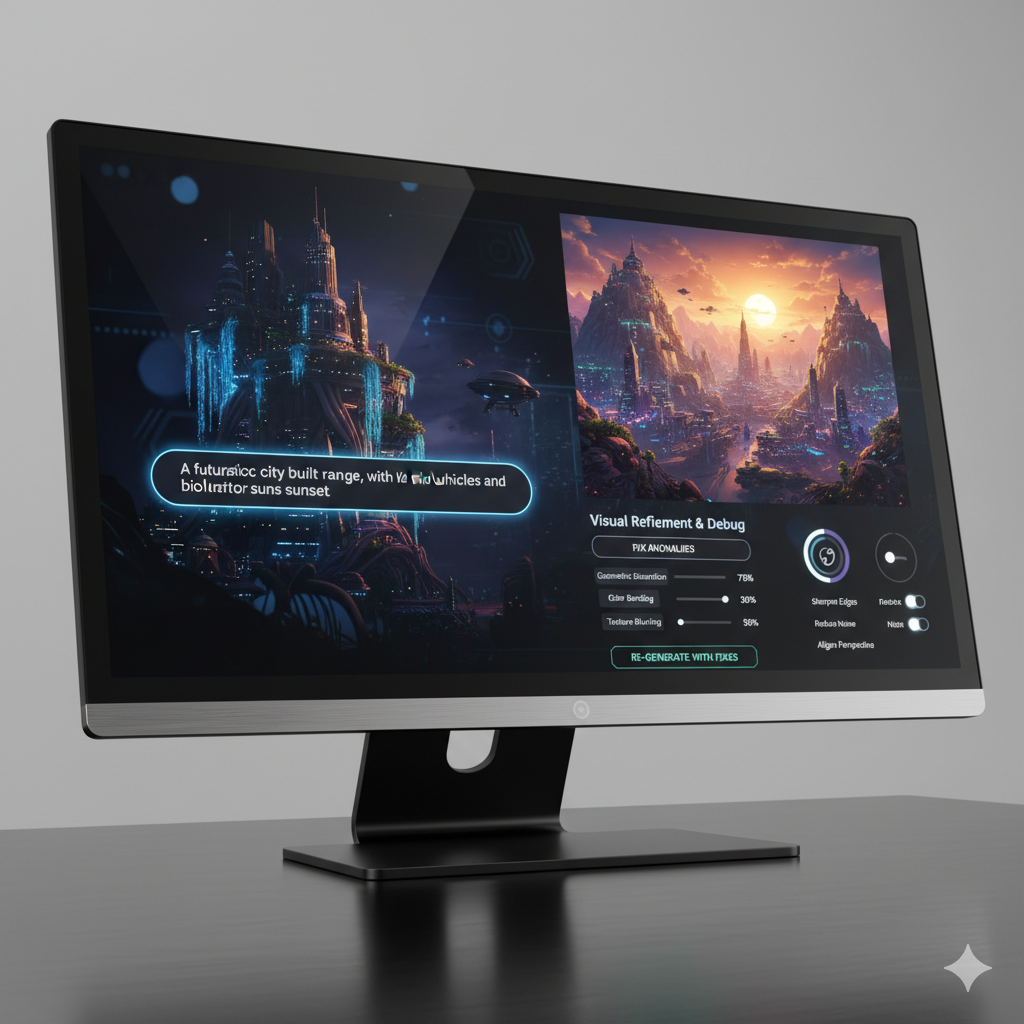
In the rapidly evolving landscape of artificial intelligence, AI image generation tools like Stable Diffusion, Midjourney, and DALL-E have democratized creativity, allowing anyone to conjure vivid visuals from simple text prompts. From breathtaking landscapes to fantastical creatures and photorealistic portraits, the possibilities seem limitless. However, the path to perfect AI-generated imagery is rarely a straight one. Users frequently encounter a myriad of frustrating issues: distorted anatomy, nonsensical text, an inability to capture a specific style, or outputs that simply fail to meet expectations. This isn’t a sign of your inadequacy, but rather an inherent part of working with complex AI systems.
Welcome to The AI Image Troubleshooting Handbook, your essential guide to navigating these common generation headaches. This comprehensive resource is designed to equip you with the knowledge and practical strategies needed to diagnose, understand, and resolve the most frequent problems you’ll encounter. We’ll delve into the nuances of prompt engineering, demystify model parameters, address software limitations, and explore advanced techniques to refine your outputs. Whether you’re a beginner struggling with your first prompts or an experienced user seeking to push the boundaries of your creations, this handbook will provide actionable insights to transform your frustrating glitches into creative triumphs. Get ready to take control of your AI art and unlock its full potential.
Understanding the Core Challenges in AI Image Generation
Before we dive into specific troubleshooting steps, it’s crucial to understand why AI image generation can be so finicky. These systems, at their heart, are complex neural networks trained on vast datasets of images and corresponding text descriptions. They learn patterns, styles, and relationships between visual elements and linguistic cues. However, this learning process is statistical and probabilistic, not intuitive in the human sense. The AI doesn’t “understand” concepts like a human does; it merely predicts the most likely pixel arrangement based on its training data and your input prompt.
Several core challenges contribute to common generation headaches:
- Ambiguity of Language: Human language is rich with nuance, metaphor, and context-dependent meaning. An AI model, while powerful, interprets prompts literally based on its training. A prompt like “a beautiful landscape” is highly subjective and can yield vastly different results than what the user envisioned.
- Dataset Limitations and Bias: The quality and scope of the training data heavily influence the AI’s output. If the dataset lacks sufficient examples of a certain style, object, or demographic, the AI will struggle to generate it accurately or may default to more common, potentially biased, representations.
- Probabilistic Nature: Each generation involves an element of randomness (controlled by the seed). This means even with identical prompts and parameters, slight variations can occur, and sometimes, the AI just “misinterprets” or generates a less coherent image purely by chance.
- Computational Complexity: Generating high-quality images is computationally intensive. Issues can arise from insufficient hardware, incorrect software configurations, or even subtle bugs in the underlying algorithms.
- Evolving Technology: The field of generative AI is moving at an incredible pace. Models are constantly updated, new techniques emerge, and what worked yesterday might be less effective today. Staying current requires continuous learning and adaptation.
By recognizing these foundational challenges, you can approach troubleshooting with a more informed and patient mindset, understanding that many issues stem from the fundamental workings of these remarkable, yet imperfect, technologies.
Section 1: The Art of Prompt Engineering – When Your Words Fail You
1.1 Vague and Ambiguous Prompts
One of the most frequent culprits behind unsatisfactory AI-generated images is a poorly constructed prompt. AI models, while sophisticated, lack human intuition. They interpret your words based on statistical associations learned from their training data. A prompt like “a cool car” is simply too vague. What kind of car? What era? What color? What background? “Cool” is entirely subjective. The AI will likely default to a common, generic interpretation from its dataset, which may be far from your vision.
Troubleshooting Strategy: Be specific, descriptive, and iterative.
- Add Specific Details: Instead of “a cool car,” try “a vintage 1967 Ford Mustang Shelby GT500, dark green, parked on a dusty desert road at sunset, cinematic lighting, hyperrealistic.”
- Use Adjectives and Modifiers: Employ descriptive adjectives (e.g., “majestic,” “serene,” “vibrant”), adverbs (e.g., “gently,” “swiftly”), and stylistic modifiers (e.g., “oil painting,” “cyberpunk,” “photorealistic”).
- Specify Lighting and Composition: Words like “golden hour,” “dramatic backlight,” “wide shot,” “close-up,” or “Dutch angle” can dramatically influence the mood and framing.
- Specify Artists or Styles (if allowed and relevant): For certain models, referencing famous artists (e.g., “in the style of Vincent van Gogh”) or art movements can guide the aesthetic. However, be aware that over-reliance on this can sometimes lead to copyright concerns or homogenization if not used thoughtfully.
- Iterate and Refine: Start with a basic prompt and incrementally add or remove details based on the results. Analyze what worked and what didn’t in each generation.
Real-life example: You want a dragon. Initial prompt: “dragon.” Result: A generic, perhaps cartoonish dragon. Refined prompt: “An ancient, colossal dragon, obsidian scales shimmering under moonlight, perched atop a volcanic peak, steam rising, epic fantasy art, dramatic lighting.” This vastly improves the specificity and likelihood of a desired output.
1.2 Contradictory or Conflicting Instructions
Sometimes, prompts contain elements that are logically inconsistent or difficult for the AI to reconcile within its learned data. For instance, asking for “a hot day with snow falling” might confuse the model, leading to odd juxtapositions or a failure to render either element convincingly. Similarly, “a detailed background blur” is an oxymoron; if it’s blurred, it can’t be detailed.
Troubleshooting Strategy: Simplify and prioritize.
- Identify Conflicting Terms: Read your prompt carefully and look for opposing concepts.
- Prioritize Key Elements: Decide which part of the prompt is most important. If “hot day” is more crucial than “snow,” remove the snow or rephrase to “snow melting on a hot pavement” to make it cohesive.
- Break Down Complex Ideas: If you’re trying to achieve a nuanced concept, try generating separate elements and then combining them in a photo editor, or use a tool that supports inpainting/outpainting for finer control.
- Leverage Prompt Weighting (if supported): Some tools allow you to assign weights to different parts of your prompt (e.g.,
(hot day:1.2) and (snow falling:0.8)) to indicate which elements should take precedence.
1.3 The Power of Negative Prompts
Just as important as telling the AI what you want is telling it what you don’t want. Negative prompts are crucial for filtering out undesirable elements, common artifacts, or general aesthetic flaws. Without them, you might consistently get blurry images, deformed hands, or ugly backgrounds.
Troubleshooting Strategy: Utilize and refine negative prompts.
- Start with Common Artifacts: A good general negative prompt often includes terms like “low quality, blurry, ugly, deformed, disfigured, bad anatomy, missing limbs, extra limbs, poorly drawn hands, mutation, grotesque, cropped, out of frame, watermark, signature, text, error.”
- Address Specific Issues: If you’re consistently getting a certain unwanted element (e.g., “red eyes” when you want blue), add “red eyes” to your negative prompt.
- Refine for Style: If you’re aiming for realism but getting a cartoonish feel, add “cartoon, anime, drawing, illustration” to your negative prompt. Conversely, if you want a vibrant image and it’s too muted, you might negatively prompt “monochrome, grayscale, dull.”
- Experiment: The effectiveness of negative prompts can vary between models and even specific checkpoints. Keep a list of effective negative prompts and adjust them as needed for different creative goals.
Recent development: Many modern AI image models and interfaces (like Automatic1111 for Stable Diffusion) have robust negative prompting capabilities, and some even come with pre-built “default” negative prompt lists that are a great starting point.
Section 2: Decoding Model Limitations and Output Flaws
2.1 Distorted Anatomy and Grotesque Features
This is arguably the most infamous and frustrating issue: AI-generated humans or creatures with too many fingers, eyes in the wrong place, fused limbs, or generally unsettling distortions. This happens because while AI models are great at patterns, they don’t have an intrinsic understanding of human or animal anatomy. They learn to assemble features based on pixel data, and sometimes those assemblies are statistically plausible but biologically incorrect.
Troubleshooting Strategy: Prompt engineering, specific models, and iterative refinement.
- Detailed Character Prompts: Provide specific details about the character’s appearance, focusing on realism. “A woman with delicate hands, slender fingers” can sometimes help, though it’s not a guaranteed fix.
- Negative Prompts are Key: This is where negative prompts like “bad anatomy, deformed, disfigured, poorly drawn hands, missing limbs, extra limbs, mutation, low quality, blurry” are absolutely essential.
- High Iteration Counts and Denoising: More generation steps (sampling steps) and careful adjustment of denoising strength can sometimes give the model more opportunities to refine details.
- Inpainting/Outpainting: For critical images, generate the base, then use an inpainting tool (available in many AI interfaces) to specifically redraw problematic areas like hands or faces. Mask the area and provide a targeted prompt (e.g., “perfect hands, realistic fingers”) to regenerate just that section.
- Specialized Models/LoRAs: Some AI models or fine-tuned LoRAs (Low-Rank Adaptation) are specifically trained on high-quality anatomical datasets and perform much better at rendering human figures. Searching for “realistic human LoRA” or using models like ‘realisticvision’ for Stable Diffusion can yield superior results.
- Lower CFG Scale: Sometimes a very high CFG scale can make the AI “overthink” and introduce artifacts. Try reducing it slightly.
2.2 Nonsensical Text and Garbled Lettering
If you ask an AI to generate text within an image, it almost invariably produces unreadable gibberish. This is because AI image models are designed to generate images, not text characters. They see text as another visual pattern, not as semantic information. They can mimic the shape and style of letters but cannot spell or form coherent words.
Troubleshooting Strategy: Avoid AI text generation, use post-processing.
- Avoid Prompting for Text: The simplest solution is not to ask the AI to generate text at all.
- Generate Placeholder Text: If text is necessary for the composition (e.g., a sign), prompt for “a blank sign” or “sign with unreadable text” to get the visual element, then add real text using a standard image editor (Photoshop, GIMP, Canva, etc.).
- Inpainting for Text: Generate the image without text, then use an inpainting tool to mask the area where you want text. Generate a plain block of color, then use an external editor to overlay your desired text.
- Dedicated OCR/Text Models: While rare for direct image generation, some specialized AI models are emerging that can handle text better, but they are not yet mainstream in general image generation tools.
2.3 Style Drift and Inconsistent Aesthetics
You want a series of images in a consistent style, but the AI keeps shifting aesthetics, making your characters look different or your environments vary wildly. This often happens because the AI has a vast array of styles in its training data and can struggle to maintain a very specific aesthetic without strong guidance.
Troubleshooting Strategy: Consistent prompting, seeds, and reference images.
- Lock Down Your Prompt: Once you find a prompt that yields a desired style, use it consistently across all generations for that series. Avoid introducing new stylistic elements unless intentional.
- Use the Same Seed: The “seed” number determines the initial noise pattern from which the image is generated. Using the same seed for subsequent generations (along with the same prompt and parameters) will produce very similar, if not identical, base images, allowing for minor variations.
- Reference Images (Image-to-Image / Img2Img): If your tool supports it, use an initial, well-generated image as a reference (input image) for subsequent generations. Adjust the denoising strength carefully; higher denoising will change the image more, lower will keep it closer to the original.
- Embeddings/LoRAs for Style: If you have a very specific character or style you want to maintain, consider training a Textual Inversion embedding or a LoRA on images of that character/style. This is an advanced technique but offers the most control over consistency.
Section 3: Mastering Parameters and Settings
3.1 The Impact of CFG Scale (Classifier-Free Guidance)
The CFG Scale (Classifier-Free Guidance Scale) dictates how strongly the AI model adheres to your prompt. A higher CFG value means the AI will try harder to match your prompt, often resulting in more vibrant, detailed, and “prompt-accurate” images. However, too high a CFG scale can lead to over-saturation, artifacts, or an artificial “crunchy” look. A lower CFG scale allows the AI more creative freedom, sometimes yielding more unexpected but artistically softer or dreamier results.
Troubleshooting Strategy: Experiment with CFG scale.
- Typical Range: Most users find a sweet spot between 7 and 12 for general use.
- Too Literal/Over-Saturated: If your images look overly aggressive, hyper-detailed to the point of noise, or unnaturally vibrant, try lowering the CFG scale (e.g., from 12 to 9 or 7).
- Too Vague/Off-Prompt: If the AI seems to ignore parts of your prompt or generates images that are too abstract, try increasing the CFG scale (e.g., from 5 to 8 or 10).
- Artistic Styles: Lower CFG scales can be good for abstract, painterly, or impressionistic styles, while higher values suit photorealism or detailed illustrations.
3.2 Samplers and Sampling Steps
The “sampler” (e.g., Euler A, DPM++ 2M Karras, DDIM, PLMS, UniPC) is the algorithm the AI uses to progressively refine the image from noise. “Sampling steps” refer to how many iterations the sampler takes. Different samplers have distinct characteristics in terms of speed, quality, and how they interpret details. More sampling steps generally lead to more refined images, but there’s a point of diminishing returns.
Troubleshooting Strategy: Choose wisely, don’t overdo steps.
- Experiment with Samplers: If you’re getting consistently poor results, try a different sampler. Popular choices like DPM++ 2M Karras (often highly recommended for Stable Diffusion) or Euler A can produce very different outputs.
- Optimal Steps: For most samplers, 20-30 steps are often sufficient for good quality. Going beyond 40-50 steps rarely yields significant improvement and only increases generation time. Some samplers, like UniPC, can achieve good results with fewer steps (15-20).
- Blurry/Undetailed Images: If your images lack detail or appear blurry, try increasing the sampling steps incrementally or switching to a sampler known for better detail retention.
- “Cooked” Images: Too many steps can sometimes lead to images looking “over-processed” or having strange artifacts. If this happens, reduce your steps.
Recent development: Newer samplers are continuously being developed that offer better quality at fewer steps, improving efficiency. Keep an eye on community recommendations for the latest efficient samplers.
3.3 The Seed Number: Controlling Randomness
The seed is an integer that initializes the random noise pattern from which the AI starts generating an image. Think of it as the unique blueprint for that specific image’s initial state. If you use the same prompt, parameters, and seed, you will get the exact same image (or extremely similar, depending on minute software variations).
Troubleshooting Strategy: Leverage the seed for consistency and exploration.
- Reproducing a Good Image: If you generate an image you really like, always save its seed number. This allows you to regenerate it precisely later, or to make minor changes (e.g., changing one word in the prompt) while keeping the overall composition.
- Iterating on a Base: To generate variations on a specific composition, keep the seed fixed and make small adjustments to your prompt or other parameters. This is very useful for refining details without completely changing the scene.
- Exploring New Ideas: If you’re stuck in a rut or want completely fresh ideas, use a random seed (or change it frequently). This forces the AI to start from a different noise pattern, leading to new compositions.
Section 4: Technical Glitches and Performance Issues
4.1 “Out of Memory” (OOM) Errors
When running AI image generation locally, especially on GPUs, “Out of Memory” errors are a common occurrence. This means your graphics card (GPU) doesn’t have enough VRAM (Video RAM) to handle the requested generation task. This often happens with very high-resolution images, large batch sizes, or complex models.
Troubleshooting Strategy: Reduce VRAM usage.
- Lower Resolution: Generate images at a smaller resolution (e.g., 512×512 or 768×768) and then upscale them using an AI upscaler like ESRGAN or SwinIR in a separate step.
- Reduce Batch Size: Generate one image at a time instead of multiple in a batch.
- Enable Low VRAM/Optimized Settings: Many AI interfaces (like Automatic1111) have command-line arguments or settings to enable “low VRAM” or “xformers” (a memory-efficient attention mechanism). Activating these can significantly reduce VRAM footprint.
- Use Text-to-Image (T2I) and Img2Img Carefully: Img2Img operations typically use more VRAM than pure T2I, especially at higher resolutions.
- Close Other GPU-Intensive Applications: Ensure no other programs are using your GPU’s VRAM (e.g., games, video editors, browsers with many tabs).
- Upgrade Hardware: As a last resort, if OOM errors persist, upgrading to a GPU with more VRAM (e.g., 12GB, 16GB, 24GB) might be necessary for demanding tasks.
4.2 Slow Generation Times
Waiting minutes for a single image can halt your creative flow. Slow generation times are typically a hardware limitation, but software optimizations can also play a role.
Troubleshooting Strategy: Optimize for speed.
- Faster GPU: The most significant factor is your GPU. More powerful GPUs with higher VRAM and processing power (like NVIDIA’s RTX 30-series or 40-series) will generate images much faster.
- Fewer Sampling Steps: As discussed, reduce sampling steps to the lowest acceptable quality.
- Smaller Resolutions: Generating smaller images is faster. Upscale later.
- Efficient Samplers: Some samplers are inherently faster than others (e.g., Euler A is often quicker than DPM++ variants, though quality may differ).
- Enable Performance Optimizations: Tools like xformers or optimized PyTorch builds can accelerate generation by making memory and computation more efficient.
- Cloud-Based Solutions: If local hardware is a bottleneck, consider using cloud-based AI generation services (e.g., Google Colab, RunPod, Hugging Face Spaces) that provide access to powerful GPUs.
4.3 Software Installation and Configuration Issues
Getting your AI image generation software set up correctly can be a hurdle, especially for local installations of tools like Automatic1111’s Stable Diffusion web UI. Common problems include missing dependencies, Python version conflicts, incorrect path settings, or model loading errors.
Troubleshooting Strategy: Follow instructions meticulously, use virtual environments.
- Read Documentation Thoroughly: Always follow the official installation guides step-by-step. Don’t skip any prerequisites.
- Python Virtual Environments: Use a virtual environment (e.g., `venv` or `conda`) to manage Python dependencies. This isolates your AI project’s dependencies from your system’s global Python installation, preventing conflicts.
- Check Error Messages: Don’t just close error windows. Read the console output carefully. Error messages often point directly to the problem (e.g., “ModuleNotFoundError,” “CUDA out of memory,” “permission denied”).
- Update Drivers: Ensure your GPU drivers (NVIDIA CUDA, AMD ROCm) are up to date. Outdated drivers are a frequent cause of performance and compatibility issues.
- Search Online: If you encounter a specific error message, chances are someone else has too. Copy and paste the error into a search engine, often leading to solutions on GitHub issues, Reddit, or forums.
- Community Support: Join relevant Discord servers or forums for your specific AI tool. The community is often very helpful for installation woes.
- Clean Reinstallation: If all else fails, sometimes a complete removal and clean reinstallation (after deleting all associated files and folders) can resolve deeply rooted configuration problems.
Section 5: Advanced Refinement and Ethical Considerations
5.1 Enhancing Quality with Upscalers and Post-Processing
Even perfectly prompted images often benefit from post-generation enhancements. AI upscalers and traditional image editing can turn a good image into a great one.
Troubleshooting Strategy: Integrate upscaling and editing into your workflow.
- AI Upscalers: Tools like ESRGAN, SwinIR, or integrated upscalers in Stable Diffusion UIs use AI to intelligently increase image resolution while adding detail, rather than just stretching pixels. This is crucial for printing or high-resolution displays.
- Detail Enhancers: Some UIs offer built-in “hires. fix” or “detailer” options that use an additional pass (often via Img2Img or inpainting) to refine details like faces and hands without re-generating the entire image from scratch.
- Traditional Image Editing: Don’t underestimate the power of tools like Adobe Photoshop, GIMP, Affinity Photo, or even online editors like Photopea.
- Color Correction: Adjusting exposure, contrast, saturation, and white balance can dramatically improve an image’s visual appeal.
- Retouching: Removing minor artifacts, blemishes, or unwanted elements with cloning or healing tools.
- Compositional Adjustments: Cropping, straightening, or adding elements (like text) that AI struggles with.
5.2 Tackling Bias and Ethical Concerns
AI models, being trained on vast human-curated datasets, inevitably inherit biases present in that data. This can manifest as stereotypes, underrepresentation of certain groups, or even perpetuating harmful imagery. Addressing this is not just technical troubleshooting, but also an ethical responsibility.
Troubleshooting Strategy: Conscious prompting and critical evaluation.
- Be Explicit and Inclusive in Prompts: If you want diversity, prompt for it directly. Instead of “a CEO,” specify “a female CEO of African descent,” or “a CEO from India.”
- Challenge Assumptions: Be mindful of your own implicit biases when crafting prompts. Are you always defaulting to certain demographics or stereotypes without thinking?
- Use Negative Prompts for Undesirable Representations: If you’re getting stereotyped outputs, try negatively prompting terms associated with those stereotypes (e.g., “gangster,” “sexualized,” if inappropriate).
- Iterate and Diversify: Generate multiple variations and analyze them for bias. Actively seek out different representations.
- Understand Model Limitations: Some models are more prone to certain biases than others due to their training data. Be aware of the characteristics of the models you are using.
- Critically Evaluate Outputs: Don’t just accept what the AI gives you. Reflect on whether the image accurately and ethically represents your intent, or if it’s inadvertently perpetuating harmful stereotypes.
Recent developments: AI developers are increasingly working on “debiasing” datasets and models, but it’s an ongoing challenge. User awareness remains critical.
Section 6: Staying Current and Community Resources
6.1 The Evolving Landscape of AI Models and Features
The AI image generation space is incredibly dynamic. New models, checkpoints, LoRAs, samplers, and features are released constantly. What was state-of-the-art last month might be outdated today. This rapid evolution means continuous learning is essential.
Troubleshooting Strategy: Embrace continuous learning and updates.
- Regular Updates: Keep your AI generation software (e.g., Automatic1111) updated. Developers frequently release bug fixes, performance improvements, and new features.
- Explore New Models: Don’t stick to just one base model. Websites like Civitai.com host thousands of community-trained models and LoRAs. Experimenting with different models can unlock new styles, improve specific content generation (e.g., characters, environments), or resolve issues that a general model struggles with.
- Understand LoRAs and Textual Inversions: These smaller, fine-tuned models can be “stacked” onto base models to add specific styles, characters, or objects. Learning to use them effectively is a powerful way to refine your output.
- Read Release Notes and Community Discussions: Pay attention to announcements from model creators and discussions in AI art communities.
6.2 Leveraging Community and Online Resources
You are not alone in your AI art journey. Millions of users are experimenting, troubleshooting, and sharing their findings. The collective knowledge of the community is an invaluable resource.
Troubleshooting Strategy: Actively engage with the community.
- Online Forums and Subreddits: Reddit communities like r/StableDiffusion, r/midjourney, r/dalle2, and r/AIGenArt are vibrant hubs for sharing tips, troubleshooting, and showcasing work.
- Discord Servers: Many AI tools, models, and artists have dedicated Discord servers where you can get real-time help, ask questions, and learn from experienced users.
- YouTube Tutorials: A plethora of YouTube channels offer in-depth tutorials on prompt engineering, specific software features, advanced techniques, and troubleshooting common issues. Visual guides can be incredibly helpful.
- Civitai.com and Hugging Face: These platforms are not just for downloading models but also for seeing example images, prompts, and settings used by others. Studying successful generations can provide immense learning opportunities.
- Official Documentation: While sometimes technical, the official documentation for tools and models can provide definitive answers to specific parameters and functionalities.
By staying connected and continuously learning, you transform troubleshooting from a frustrating obstacle into an opportunity for growth and mastery.
Comparison Tables
To aid in your troubleshooting journey, here are two comparison tables illustrating differences and common approaches across AI image generation.
Table 1: Common AI Image Generation Tools: Strengths and Troubleshooting Nuances
| Tool/Model | Primary Strength | Common Troubleshooting Point | Typical Resolution Strategy |
|---|---|---|---|
| Midjourney | Aesthetic appeal, artistic interpretation, ease of use. | Overly stylized outputs, difficulty with specific object placement, character consistency. | Use --style raw or --s 0 for less stylization; use reference images (Img2Img); detailed prompting with descriptive nouns. |
| Stable Diffusion (Automatic1111 WebUI) | Customization, local control, vast ecosystem of models/LoRAs, photorealism potential. | Deformed anatomy, slow generation, OOM errors, installation issues, complexity of parameters. | Extensive negative prompts; optimize settings (xformers, low VRAM); reduce resolution then upscale; use specific LoRAs for anatomy. |
| DALL-E 3 (via ChatGPT/Copilot) | Contextual understanding, strong prompt adherence, excellent text generation integration. | Censorship/guardrails, limited direct control over parameters, inability to modify specific elements. | Rephrase prompts to avoid guardrails; generate new variations; use external editors for touch-ups. |
| Fooocus | Simplicity, user-friendly interface, good quality out-of-the-box, optimized for common use cases. | Fewer fine-tuning controls than A1111, less model variety directly. | Rely on good core prompts; switch to other tools for extremely niche or specific technical control. |
Table 2: Prompt Refinement Techniques and Their Impact
| Technique | Description | Potential Impact on Output | When to Apply |
|---|---|---|---|
| Adding Adjectives/Adverbs | Using descriptive words (e.g., “majestic,” “serene,” “gently”) to specify qualities. | Adds mood, detail, and specific characteristics to subjects and scenes. | When results are too generic, lacking atmosphere or specific visual traits. |
| Specifying Lighting/Composition | Including terms like “golden hour,” “dramatic backlight,” “wide shot,” “close-up.” | Controls the mood, depth, focus, and framing of the image. | When the image lacks visual interest, desired emotional tone, or professional composition. |
| Using Negative Prompts | Explicitly telling the AI what not to include or what qualities to avoid. | Removes unwanted artifacts (e.g., bad anatomy), styles, or generic flaws. Improves overall cleanliness. | Always, especially for realism and avoiding common AI quirks like mutated hands or blurriness. |
| Artist/Style References | Mentioning specific artists (e.g., “in the style of Greg Rutkowski”) or art movements. | Guides the aesthetic and artistic technique of the generation. | When aiming for a specific artistic feel, historical period style, or known visual language. |
| Prompt Weighting (e.g., (word:1.2)) | Assigning numerical importance to certain words or phrases in the prompt. | Increases or decreases the influence of specific terms, allowing for fine-grained control over prompt adherence. | When certain elements are being ignored or are too dominant; balancing conflicting ideas. |
Practical Examples: Solving Real-World AI Image Problems
Let’s walk through a few common scenarios and demonstrate how to apply the troubleshooting principles we’ve discussed.
Example 1: The Case of the Mutated Hand
Problem: You’re trying to generate a realistic portrait of a person holding a flower, but every time, their hand looks like a gnarled, multi-fingered abomination.
Initial Prompt: “A beautiful woman holding a red rose, soft lighting, photorealistic.”
Diagnosis: This is a classic AI anatomy problem. The AI struggles with complex structures like hands due to insufficient distinct examples in training data for every possible angle and pose.
Troubleshooting Steps:
- Add a Strong Negative Prompt: This is your first line of defense.
New Prompt: “A beautiful woman holding a red rose, soft lighting, photorealistic.”
Negative Prompt: “bad anatomy, deformed, disfigured, poorly drawn hands, missing fingers, extra fingers, mutation, grotesque, blurry, low quality.”
- Increase Sampling Steps and Lower CFG (if necessary): Sometimes, more steps give the AI more chances to refine, and a slightly lower CFG prevents over-sculpting.
Try increasing sampling steps from 20 to 30-40. Experiment with CFG in the 7-9 range.
- Utilize Inpainting (Advanced): If the hand is still problematic but the rest of the image is perfect:
- Generate the image as best you can.
- In your AI tool’s inpainting interface, mask the problematic hand area.
- Provide a specific inpainting prompt for that masked area: “perfectly formed hand, delicate fingers, holding a red rose, realistic.”
- Generate the inpainted section. You might need to try a few times with different seeds for that specific inpainting region.
- Use an Anatomically Superior Model/LoRA: If using Stable Diffusion, explore models or LoRAs specifically fine-tuned for human anatomy (e.g., ‘RealisticVision’ base model, or specific ‘hand fixer’ LoRAs from Civitai).
Outcome: By combining negative prompts, careful parameter tuning, and potentially inpainting or a specialized model, you significantly increase the chances of getting a natural-looking hand.
Example 2: Achieving a Consistent Artistic Style
Problem: You want to create a series of character portraits in a unique “cyberpunk watercolor” style, but each generation comes out looking different – sometimes more traditional watercolor, sometimes too neon, rarely consistent.
Initial Prompt: “A cyberpunk hacker, city lights, watercolor style.”
Diagnosis: The prompt is too broad for a specific blend of styles. “Watercolor” can mean many things, and “cyberpunk” has various interpretations. The AI is picking different stylistic elements from its vast training data.
Troubleshooting Steps:
- Be Hyper-Specific with Style Modifiers: Break down the style into its components and add more precise descriptive terms.
New Prompt: “A cyberpunk hacker, glowing neon rain, digital watercolor, vibrant hues, intricate details, ink wash effect, dystopian cityscape background, dramatic lighting, in the style of *specific artist if relevant*.”
- Lock Down the Seed Once a Good Style is Found: Generate several images with your refined prompt. Once you get one that exemplifies your desired style, note its seed.
For subsequent generations in the series, keep the seed constant and only change minor character details.
- Utilize Image-to-Image (Img2Img): Take your best initial image in the desired style and use it as an input for Img2Img. Keep the denoising strength relatively low (e.g., 0.5-0.7) to preserve the style while introducing new elements from your prompt.
- Create a Style LoRA (Advanced): If you consistently need this exact style across many projects, consider curating a small dataset of images in that style and training your own LoRA. This provides the ultimate consistency.
Outcome: Through detailed prompt engineering, seed locking, and Img2Img, you can achieve remarkable consistency in your chosen artistic style across multiple generations.
Example 3: Low Detail and Blurry Backgrounds
Problem: Your generated images look okay at a small size, but when you zoom in, they’re blurry, lack fine detail, and the background is just a vague blob.
Initial Prompt: “An ancient wizard, deep in a magical forest, mystical atmosphere.”
Diagnosis: This could be a combination of low native resolution, insufficient sampling steps, or a CFG scale that’s too low for detail.
Troubleshooting Steps:
- Increase Native Resolution (Carefully): While mindful of OOM errors, try generating at a slightly higher base resolution (e.g., from 512×512 to 768×768 or 832×832 if your VRAM allows).
- Optimize Sampling Steps and Sampler:
Increase sampling steps to 30-45.
Experiment with samplers known for detail, such as DPM++ 2M Karras or UniPC.
- Adjust CFG Scale: A slightly higher CFG (e.g., 8-10) often encourages more detail and adherence to the prompt.
- Add Detail-Oriented Prompts: Explicitly ask for detail in your prompt.
New Prompt: “An ancient wizard, intricate robes, staff glowing, deep in a magical forest, highly detailed leaves, dappled sunlight, mystical atmosphere, hyperrealistic, sharp focus.”
- Use an AI Upscaler: This is critical for final output quality. Even if your base image is 512×512 and looks decent, run it through an AI upscaler like ESRGAN or the built-in “Hires. fix” in your UI to scale it up to 2x or 4x the original size, adding interpolated detail.
- Employ a “Detailer” Extension (for Stable Diffusion): Some UIs have extensions specifically designed to improve face and hand detail after the initial generation, which can also enhance other fine details.
Outcome: By carefully balancing native resolution, generation parameters, specific prompting, and intelligent upscaling, you can transform a blurry image into a high-fidelity, detailed masterpiece.
Frequently Asked Questions
Q: Why are my AI-generated images distorted or “creepy”?
A: This is a very common issue, often related to the AI’s difficulty with complex anatomical structures (like hands, faces, limbs) and a lack of true semantic understanding. The AI operates statistically, trying to piece together features based on its training data, and sometimes these assemblies are physically impossible or unsettling to humans. The “creepy” factor can also come from uncanny valley effects where an image is almost realistic but has subtle, off-putting flaws. To troubleshoot, heavily rely on negative prompts (e.g., “bad anatomy, deformed, disfigured, poorly drawn hands, extra limbs, mutation”), increase sampling steps, lower CFG scale slightly, and consider using models or LoRAs specifically trained for better anatomy. Inpainting problematic areas is also a powerful solution for refining specific distortions.
Q: How can I make the AI generate text correctly within an image?
A: Generally, AI image generation models are not designed to generate coherent, readable text. They treat text as visual patterns rather than semantic information, leading to garbled, nonsensical lettering. The best approach is to avoid asking the AI to generate text directly. Instead, generate the image with a blank space or a placeholder object (like a sign or book), and then use a standard image editing software (e.g., Photoshop, GIMP, Canva) to add the desired text manually after the AI generation is complete. Some highly specialized new models are emerging with better text capabilities, but they are not yet widespread in general-purpose tools.
Q: What is the CFG Scale and how should I adjust it?
A: The CFG (Classifier-Free Guidance) Scale determines how strongly the AI model adheres to your prompt. A higher CFG value means the AI will try harder to follow your exact instructions, often leading to more detailed, vibrant, and “on-prompt” images. However, very high values can introduce artifacts, over-saturation, or an artificial look. A lower CFG value gives the AI more creative freedom, potentially resulting in more abstract, softer, or unexpected outputs.
Typical ranges are:
- Low (1-6): More creative freedom, abstract, softer. Good for artistic, less literal interpretations.
- Medium (7-12): Most common range, good balance between prompt adherence and creativity. Recommended starting point.
- High (13-20+): Strong prompt adherence, high detail, but can lead to “cooked” images or artifacts. Use with caution and specific intent.
Adjust it based on whether your image is too vague (increase CFG) or too artificial/artifact-ridden (decrease CFG).
Q: My images always look blurry or lack detail. What am I doing wrong?
A: Several factors can contribute to blurry or low-detail images:
- Low Native Resolution: If you’re generating at very small resolutions (e.g., 512×512) without upscaling, images will inherently lack detail.
- Insufficient Sampling Steps: Too few sampling steps don’t give the AI enough iterations to refine the image from noise. Try 30-45 steps.
- Suboptimal Sampler: Some samplers are better at detail retention than others. Experiment with DPM++ 2M Karras or UniPC.
- Vague Prompts: A lack of descriptive words (e.g., “highly detailed, intricate, sharp focus”) won’t encourage the AI to render fine details.
- Low CFG Scale: A very low CFG can result in softer, less defined images.
To fix this, ensure your native resolution is reasonable, use more sampling steps, try different samplers, add detail-oriented words to your prompt, and most importantly, use an AI upscaler after generation to enhance resolution and add interpolated detail.
Q: How can I prevent my AI from generating biased or stereotypical outputs?
A: AI models can inherit biases from their training data. To mitigate this:
- Be Explicit and Inclusive in Prompts: Instead of generic terms like “a person” or “a professional,” specify “a diverse group of engineers,” “a Black female scientist,” or “an elderly Asian man.”
- Use Negative Prompts: If you’re getting unwanted stereotypes, include terms in your negative prompt that relate to those stereotypes (e.g., “gangster,” “sexualized,” “poor quality,” if relevant to the bias).
- Iterate and Diversify: Generate multiple variations with slightly different prompts to explore a wider range of outputs.
- Critically Evaluate: Always review your outputs for unconscious biases. If an image feels stereotypical, try to understand why and adjust your prompt or negative prompt accordingly.
Q: Why does my AI generation software keep crashing with an “Out of Memory” error?
A: An “Out of Memory” (OOM) error indicates your GPU (graphics card) does not have enough VRAM (Video RAM) to complete the generation task. This usually happens when:
- Generating very high-resolution images.
- Using large batch sizes (generating multiple images at once).
- Running complex models or demanding operations.
To resolve this:
- Reduce Output Resolution: Generate at a lower resolution and use an AI upscaler afterward.
- Lower Batch Size: Generate one image at a time.
- Enable Low VRAM Optimizations: Many AI UIs have command-line arguments or settings (e.g.,
--lowvram,--xformers) to reduce VRAM usage. - Close Other GPU-Intensive Applications: Free up VRAM by closing games, video editors, or web browsers with many tabs.
Q: I generated a perfect image, but now I can’t recreate it exactly. What happened?
A: To recreate an image exactly, you need to use the exact same:
- Prompt: Every word, every punctuation mark.
- Negative Prompt: If one was used.
- Seed: This unique number initializes the random noise. It’s crucial for reproducibility. Always save the seed of a good image.
- Sampler: The specific algorithm used.
- Sampling Steps: Number of iterations.
- CFG Scale: Guidance strength.
- Model/Checkpoint: The specific AI model file used (e.g., ‘v1-5-pruned-emaonly.safetensors’).
- Resolution: The output dimensions.
If even one of these parameters changes, the output will likely differ. Modern UIs typically provide all this information when an image is generated, making it easy to copy and paste.
Q: My AI image generations are too slow. How can I speed them up?
A: Generation speed is primarily dependent on your GPU’s processing power and VRAM. However, you can optimize:
- Fewer Sampling Steps: Reduce the number of steps to the minimum acceptable quality.
- Smaller Resolutions: Generate smaller images and upscale later.
- Efficient Samplers: Some samplers (e.g., Euler A, UniPC) are faster than others.
- Enable Performance Optimizations: Use `xformers` or other specific performance flags in your AI software’s startup script.
- Upgrade Hardware: A more powerful GPU is the most direct way to increase speed.
- Cloud Services: Consider using cloud-based AI generation services for faster access to high-end GPUs without local hardware investment.
Q: What are LoRAs and how can they help with troubleshooting?
A: LoRA stands for Low-Rank Adaptation. It’s a small, fine-tuned model that can be “stacked” on top of a larger base AI model (like Stable Diffusion) to impart specific knowledge, styles, or characters without having to train an entirely new model. LoRAs are incredibly useful for troubleshooting because they can:
- Improve Anatomy: Some LoRAs are trained to specifically fix hands or faces.
- Enforce Consistency: Train a LoRA on a character or style to achieve consistency across generations.
- Add Specific Elements: Introduce specific objects, clothing, or themes that a base model struggles with.
- Refine Styles: Hone in on a particular artistic style that’s hard to achieve with just a prompt.
They provide a powerful way to inject very precise guidance into your generations, resolving issues related to specific content or style.
Key Takeaways
- Prompt Precision is Paramount: Be specific, detailed, and iterative with your prompts. Vague language leads to generic results.
- Master Negative Prompts: They are your most powerful tool for eliminating unwanted artifacts, distortions, and stylistic flaws.
- Understand Model Parameters: Experiment with CFG scale, samplers, and sampling steps to fine-tune adherence, detail, and generation speed.
- Embrace Iteration and Experimentation: AI image generation is an iterative process. Don’t expect perfection on the first try. Adjust, learn, and repeat.
- Leverage the Seed for Consistency: Save and reuse seeds to maintain composition and characters when iterating on an idea.
- Address Technical Limits: Be aware of hardware constraints like VRAM. Lower resolution, smaller batch sizes, and optimization flags can prevent “Out of Memory” errors.
- Post-Processing is Your Friend: AI upscalers and traditional image editors are essential for enhancing quality, adding text, and making final adjustments.
- Be Ethically Aware: Actively combat bias by crafting inclusive prompts and critically evaluating outputs.
- Stay Connected to the Community: The AI art community is a rich source of solutions, new techniques, and model recommendations.
- Continuous Learning is Key: The AI landscape evolves rapidly. Regularly update your software and explore new models and features.
Conclusion
The journey of AI image generation is a blend of scientific marvel and artistic exploration, frequently dotted with frustrating roadblocks. However, by embracing the principles outlined in The AI Image Troubleshooting Handbook, you gain not just solutions, but a deeper understanding of how these powerful tools operate. You learn to speak the AI’s language more effectively, anticipating its quirks and guiding it towards your creative vision.
Remember that every “headache” – from the dreaded distorted hand to the elusive perfect style – is an opportunity to learn and refine your skills. The mastery of AI image generation comes not from avoiding problems, but from confidently resolving them. With precise prompt engineering, strategic parameter adjustments, intelligent use of negative prompts, and a keen eye for post-processing, you can overcome common challenges and unlock an unprecedented level of creative control. So, go forth, troubleshoot with confidence, and transform those frustrating glitches into breathtaking digital masterpieces. The world of AI art is waiting for your perfected touch.

































































Leave a Reply